Workspace Roles
Workspace roles govern user access within a workspace. Each role is a set of permissions that controls what a user can see and do across different features of CxReports.
Default Role
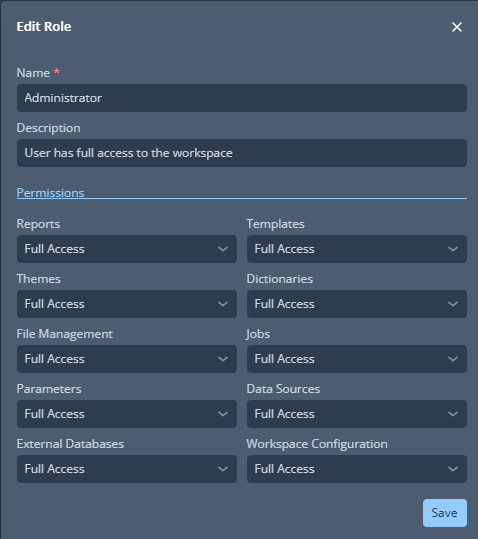
CxReports provides a default Administrator role that grants full access to all workspace features and settings. All other roles must be created manually to match your organization's needs.
Creating Custom Roles
To create a custom role:
- Navigate to the Admin application, then Workspace → Roles.
- Click Add New Role.
- Name the role and provide a description.
- Set the access level for each permission. The permissions shared by every application come first: Reusable Data Sources, Reusable Parameters, Semantic Models, External Databases, File Management, AI, Tools and Workspace Configuration. The application-specific permissions follow under their own headings:
- Reports — Reports, Templates, Themes, Dictionaries and Jobs.
- Portals — Portals, Portal Designs and Portal Themes. This section is shown only when Portals is enabled for the instance.
- Use the switch next to each application heading to allow or deny access to that whole application (see Application Access).
- Click Save.
For details on assigning roles to users, see User Management.
Application Access
The switches next to the Reports and Portals headings control whether members with the role can use that application at all. New roles have Reports switched on and Portals switched off; the default Administrator role has both on.
When an application is switched off for a role:
- The application is hidden from the application switcher, and opening its address shows a "no access" page that asks the member to contact a workspace administrator.
- Every permission in that section counts as No Access, whatever level is set.
- Access granted on individual reports, report generation jobs or portals no longer applies, including reports and portals the member created or that were shared with them or their role. For Portals this includes viewing portals through their published links.
- Scheduled report generation jobs created by members with the role can no longer generate their reports.
- The levels set in the section are kept, so switching the application back on restores them.
Permissions
Each feature category supports a specific set of access levels. The available levels vary by category — not all categories offer the same options.
Reports
| Access Level | Description |
|---|---|
| No Access | The user cannot see reports unless they created them. |
| Read | View and export reports, but cannot edit or delete them. |
| Write | Edit reports in addition to viewing and exporting. |
| Full Access | Full control including the ability to delete reports. |
Templates
| Access Level | Description |
|---|---|
| No Access | No visibility or access to templates. |
| Read | View and use templates, but cannot modify or remove them. |
| Full Access | Edit and delete templates in addition to viewing and using them. |
Themes
| Access Level | Description |
|---|---|
| No Access | No visibility or access to themes. |
| Read | View and use themes, but cannot modify or remove them. |
| Full Access | Edit and delete themes in addition to viewing and using them. |
Dictionaries
| Access Level | Description |
|---|---|
| No Access | No visibility or access to dictionaries. |
| Read | View and use dictionaries, but cannot modify or remove them. |
| Full Access | Edit and delete dictionaries in addition to viewing and using them. |
Attaching a shared dictionary to a report requires Read access to Dictionaries, and changing a shared dictionary's name or languages from a report requires Full Access. A report's own dictionaries need only access to the report.
File Management
| Access Level | Description |
|---|---|
| No Access | No visibility or access to file management. |
| Read | View and use managed files, but cannot modify or remove them. |
| Full Access | Edit and delete files in addition to viewing and using them. |
Jobs
Jobs require that the user has at least Read access to Reports, Templates, Themes, Dictionaries, File Management, Reusable Parameters, and Reusable Data Sources — otherwise jobs cannot function correctly.
| Access Level | Description |
|---|---|
| No Access | No visibility or access to jobs. |
| Full Access | Full control over jobs including creating, editing, and deleting them. |
Reusable Parameters
Covers the parameters shared across the workspace (Parameter Groups, Reusable Parameters and Global Parameters).
| Access Level | Description |
|---|---|
| No Access | Cannot see or use parameters. |
| Read | View and use parameters, but cannot modify or remove them. |
| Full Access | Edit and delete parameters in addition to viewing and using them. |
Using a reusable parameter in a portal page or layout requires Read access to Reusable Parameters, in addition to edit access to the page or layout.
Reusable Data Sources
Covers the reusable data sources shared across the workspace (Global Data Sources). Data sources defined on a report or portal page are not governed by this permission.
| Access Level | Description |
|---|---|
| No Access | No visibility or access to data sources. |
| Read | View and use data sources, but cannot modify or remove them. |
| Full Access | Edit and delete data sources in addition to viewing and using them. |
Using a reusable data source in a report or a portal requires Read access to Data Sources, in addition to edit access to the report, portal page or layout. A report's or page's own data sources need only edit access to the report or page.
A reusable data source that a user can't read is not listed for them in the report designer. When they open or export a report it applies to, the report shows an error naming that data source, and the export fails.
External Databases
| Access Level | Description |
|---|---|
| No Access | No visibility or access to external databases. |
| Read | View and use external database connections, but cannot modify or remove them. |
| Full Access | Edit and delete external database connections in addition to viewing and using them. |
A user can have Full Access to Reusable Data Sources while having only Read access to the External Databases those data sources connect to. This allows the user to manage data source configurations without being able to alter the underlying database connections.
Workspace Configuration
| Access Level | Description |
|---|---|
| No Access | No visibility or access to workspace configuration settings. |
| Read | View workspace configuration, but cannot modify it. |
| Full Access | Full control over workspace configuration settings. |
Semantic Models
| Access Level | Description |
|---|---|
| No Access | No visibility or access to semantic models. |
| Read | View semantic models and use them in semantic-query data sources, but cannot modify or remove them. |
| Full Access | Create, edit and delete semantic models in addition to viewing and using them. |
Portals
The role's level applies to every portal that inherits access from the workspace, as long as the role's Portals switch is on. A portal's own access settings can raise or lower it for specific users and roles — see Portal Access Control.
| Access Level | Description |
|---|---|
| No Access | No access to portals. The Portals entry stays in the navigation, but opening it shows a "no access" page. |
| Read | View portals in preview and through their published links, but cannot edit them. |
| Write | Create portals and edit them in the designer in addition to viewing them. |
| Full Access | Delete portals and configure their access in addition to editing them. |
Portal Designs
Designs are shared across portals, so a change to a design affects every portal built on it.
| Access Level | Description |
|---|---|
| Read | Pick a design for a portal, but cannot create, edit or delete designs. |
| Full Access | Create, edit, publish and delete designs. |
Portal Themes
| Access Level | Description |
|---|---|
| Read | Use themes in designs, but cannot create, edit or delete them. |
| Full Access | Create, edit and delete portal themes. |
Best Practices
- Least privilege — assign only the minimum access necessary for each user's responsibilities.
- Review periodically — ensure roles still align with current duties and organizational policies.
- Clear naming — use descriptive role names so their purpose is immediately obvious.