Workspace Roles
Workspace roles govern user access within a workspace. Each role is a set of permissions that controls what a user can see and do across different features of CxReports.
Default Role
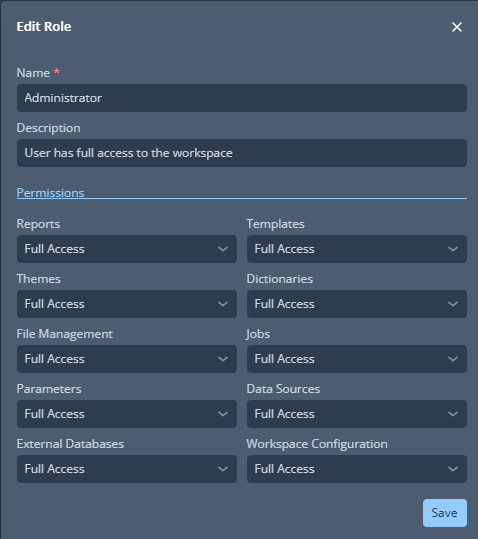
CxReports provides a default Administrator role that grants full access to all workspace features and settings. All other roles must be created manually to match your organization's needs.
Creating Custom Roles
To create a custom role:
- Navigate to the Admin application, then Workspace → Roles.
- Click Add New Role.
- Name the role and provide a description.
- Set permissions for each feature category.
- Click Save.
For details on assigning roles to users, see User Management.
Permissions
Each feature category supports a specific set of access levels. The available levels vary by category — not all categories offer the same options.
Reports
| Access Level |
Description |
| No Access |
The user cannot see reports unless they created them. |
| Read |
View and export reports, but cannot edit or delete them. |
| Write |
Edit reports in addition to viewing and exporting. |
| Full Access |
Full control including the ability to delete reports. |
Templates
| Access Level |
Description |
| No Access |
No visibility or access to templates. |
| Read |
View and use templates, but cannot modify or remove them. |
| Full Access |
Edit and delete templates in addition to viewing and using them. |
Themes
| Access Level |
Description |
| No Access |
No visibility or access to themes. |
| Read |
View and use themes, but cannot modify or remove them. |
| Full Access |
Edit and delete themes in addition to viewing and using them. |
Dictionaries
| Access Level |
Description |
| No Access |
No visibility or access to dictionaries. |
| Read |
View and use dictionaries, but cannot modify or remove them. |
| Full Access |
Edit and delete dictionaries in addition to viewing and using them. |
File Management
| Access Level |
Description |
| No Access |
No visibility or access to file management. |
| Read |
View and use managed files, but cannot modify or remove them. |
| Full Access |
Edit and delete files in addition to viewing and using them. |
Jobs
Jobs require that the user has at least Read access to Reports, Templates, Themes, Dictionaries, File Management, Parameters, and Data Sources — otherwise jobs cannot function correctly.
| Access Level |
Description |
| No Access |
No visibility or access to jobs. |
| Full Access |
Full control over jobs including creating, editing, and deleting them. |
Parameters
| Access Level |
Description |
| No Access |
Cannot see or use parameters. |
| Read |
View and use parameters, but cannot modify or remove them. |
| Full Access |
Edit and delete parameters in addition to viewing and using them. |
Data Sources
| Access Level |
Description |
| No Access |
No visibility or access to data sources. |
| Read |
View and use data sources, but cannot modify or remove them. |
| Full Access |
Edit and delete data sources in addition to viewing and using them. |
External Databases
| Access Level |
Description |
| No Access |
No visibility or access to external databases. |
| Read |
View and use external database connections, but cannot modify or remove them. |
| Full Access |
Edit and delete external database connections in addition to viewing and using them. |
A user can have Full Access to Data Sources while having only Read access to the External Databases those data sources connect to. This allows the user to manage data source configurations without being able to alter the underlying database connections.
Workspace Configuration
| Access Level |
Description |
| No Access |
No visibility or access to workspace configuration settings. |
| Read |
View workspace configuration, but cannot modify it. |
| Full Access |
Full control over workspace configuration settings. |
Best Practices
- Least privilege — assign only the minimum access necessary for each user's responsibilities.
- Review periodically — ensure roles still align with current duties and organizational policies.
- Clear naming — use descriptive role names so their purpose is immediately obvious.